CherryStudio Configuration Guide
An all-around AI assistant desktop client
Official site: https://www.cherry-ai.com/Download: https://www.cherry-ai.com/download
📋 Overview
CherryStudio is a powerful AI desktop assistant supporting major models (Claude, Gemini, GPT, and more) through a single unified interface. This guide walks you through configuring CherryStudio to use MortyCode.
✨ Features
CherryStudio offers:
- ✅ Multi-model support: Claude, Gemini, GPT, and other mainstream models
- ✅ Unified UI: Manage every AI service from one app
- ✅ Custom APIs: Plug in your own API providers
- ✅ Cross-platform: Windows, macOS, Linux
- ✅ Local-first: Data stays on your machine
- ✅ Rich functionality: Conversation management, model switching, parameter tuning, and more
🛠️ Installation
Step 1: Download and Install CherryStudio
Visit the CherryStudio download page
Pick the installer for your OS:
- Windows:
.exeinstaller - macOS:
.dmgdisk image - Linux:
.AppImageor.debpackage
- Windows:
Run the installer once it's downloaded.
💡 macOS Users
If you see "Can't be opened because it is from an unidentified developer", allow it via System Settings → Privacy & Security.
Step 2: Get a MortyCode API Key
Before configuring CherryStudio, grab an API Key from the MortyCode platform:
- Visit the MortyCode console
- Sign in
- Create the right token group for your needs:
- Claude models: pick the reverse-only group
- Gemini models: pick the gemini group
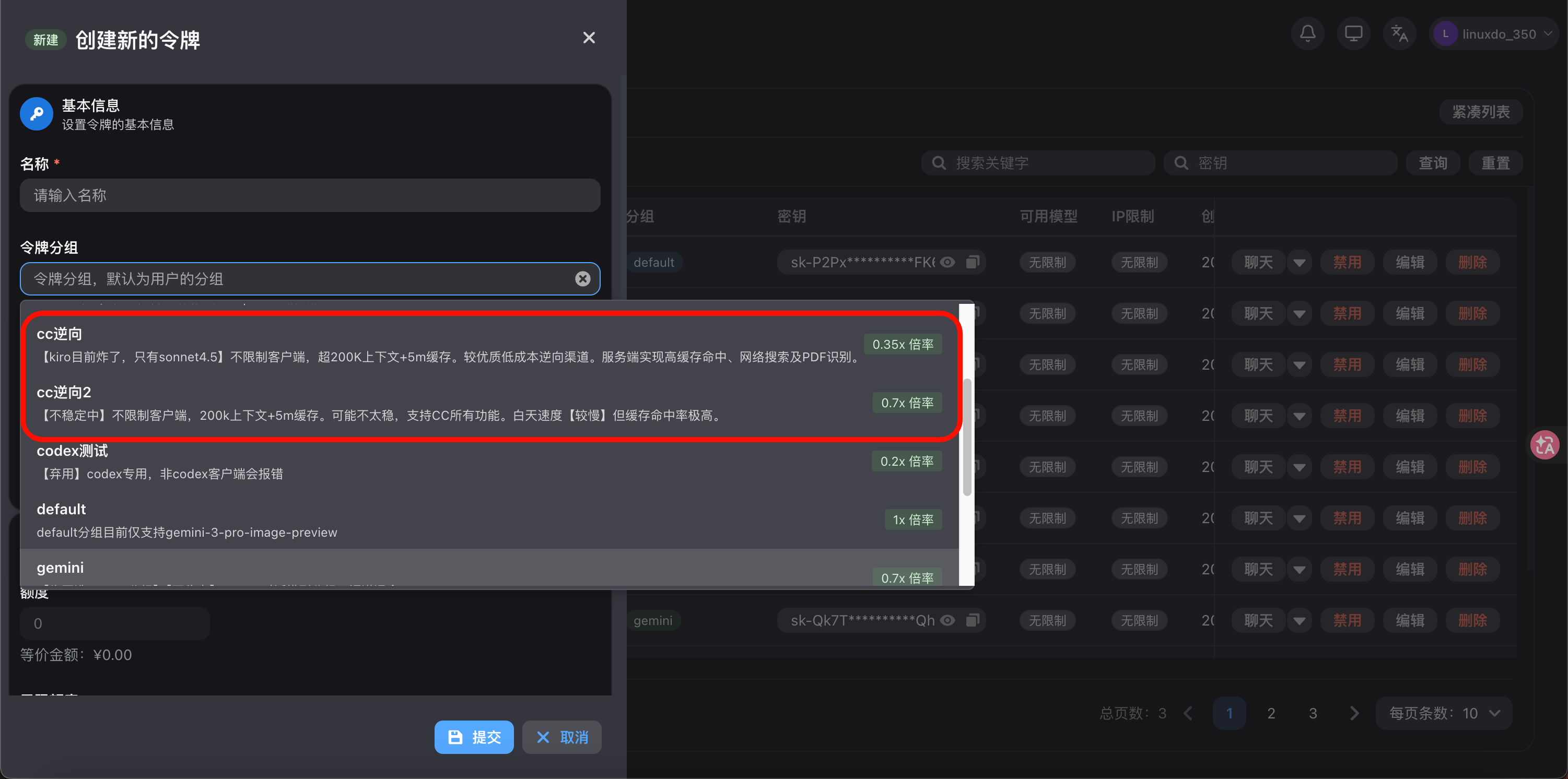
- Save the generated API Key
📋 Quick Configuration Reference
| Model | Provider type | API endpoint | Token group |
|---|---|---|---|
| Claude | Anthropic | https://api.morty.live/v1/messages | Reverse-only group |
| Gemini | Gemini | https://api.morty.live/v1beta/models | Gemini group |
🔧 Configure a Claude Model
Step 1: Open the Settings Page
- Open CherryStudio
- Click "Settings" or "Preferences" at the bottom left
- Choose "Model Settings" or "API Settings"
Step 2: Choose the Claude Model Type
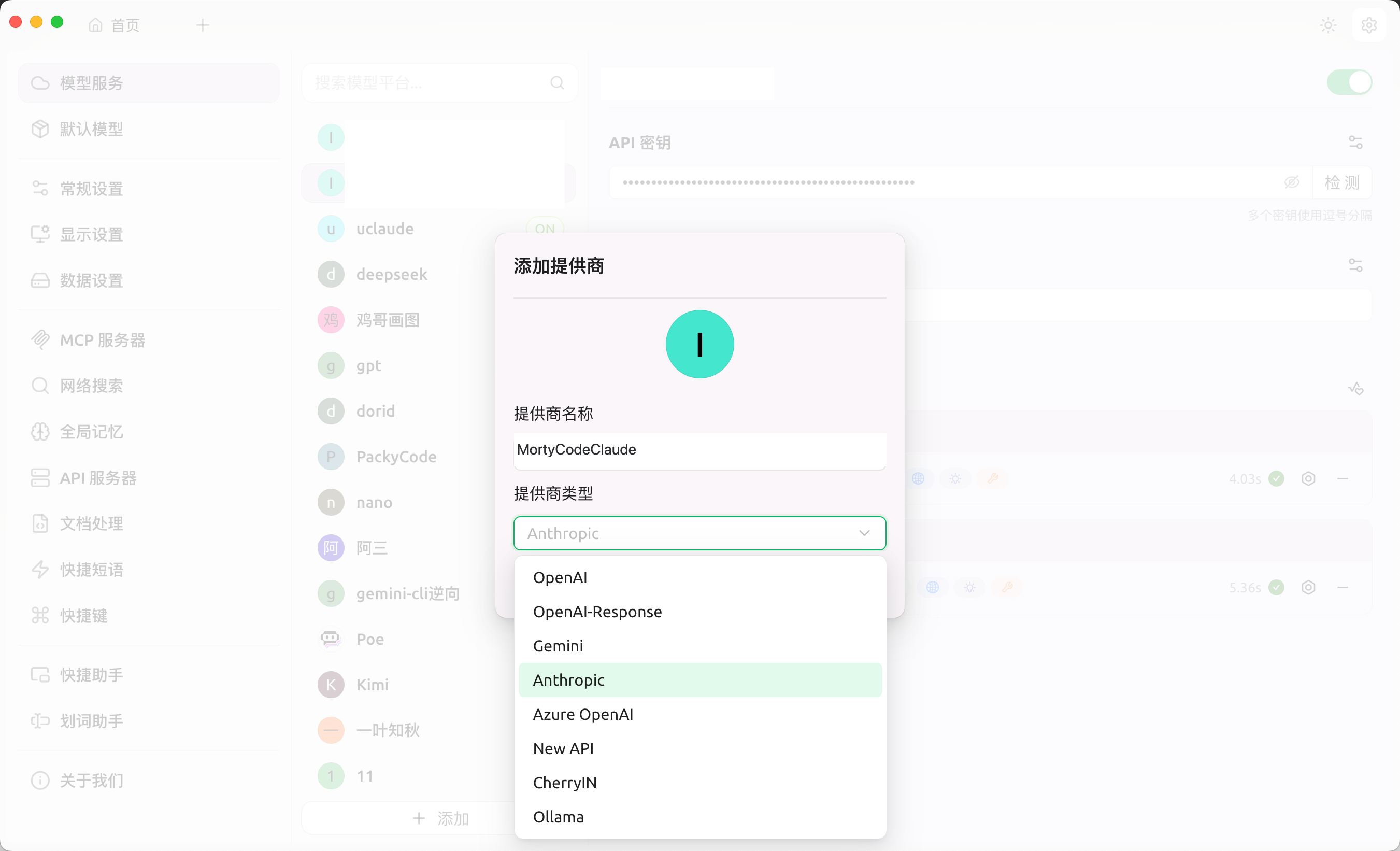
Pick the Claude model you want from the list.
Step 3: Configure the Claude API
Fill in the Claude configuration screen:
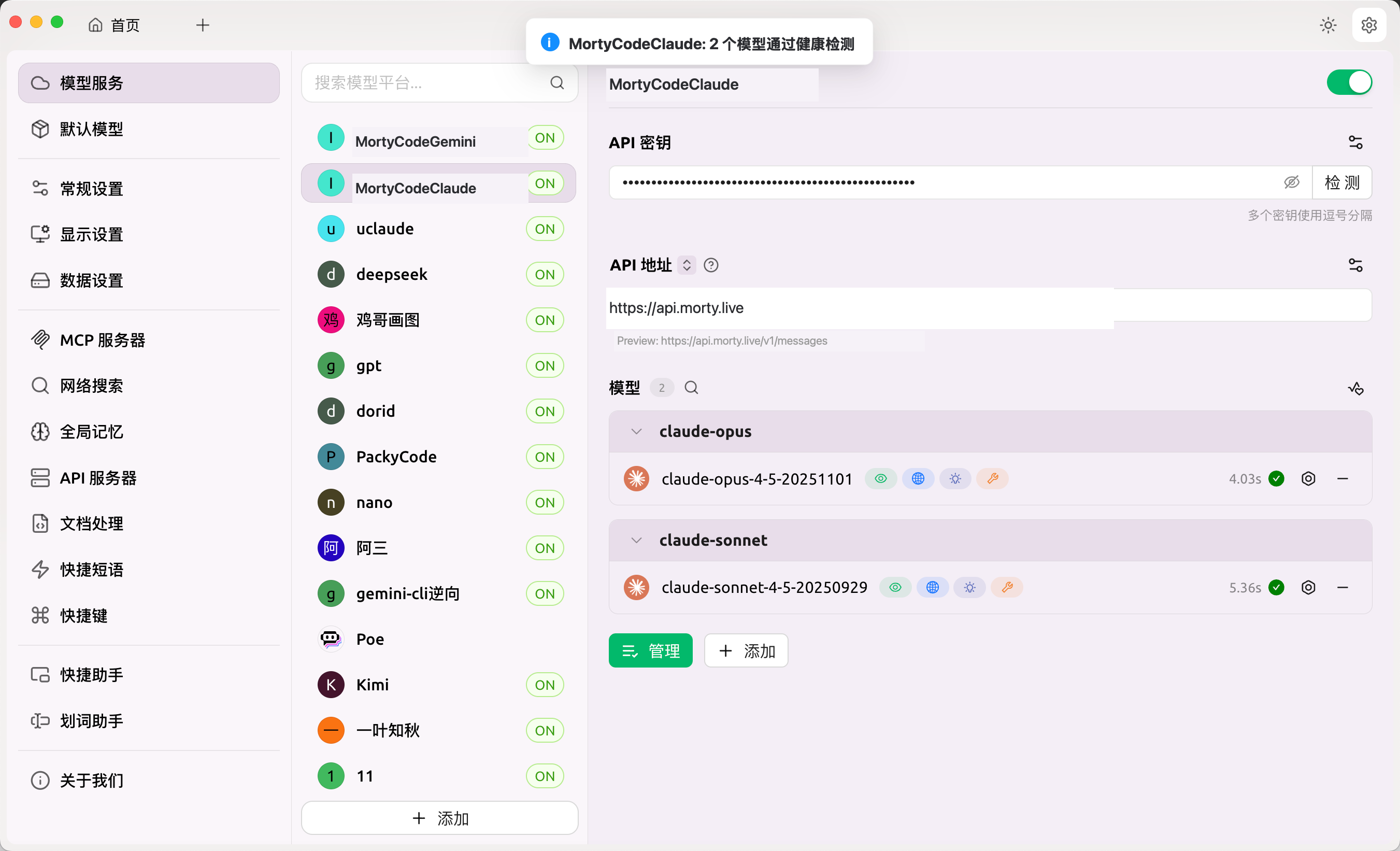
Parameters:
- Provider type:
Anthropic - API endpoint:
https://api.morty.live - API Key: Paste the Claude API Key from the MortyCode console
- Model name: The model you picked in the previous step (e.g.
claude-sonnet-4-6)
🔧 Configure a Gemini Model
Step 1: Choose the Gemini Model Type
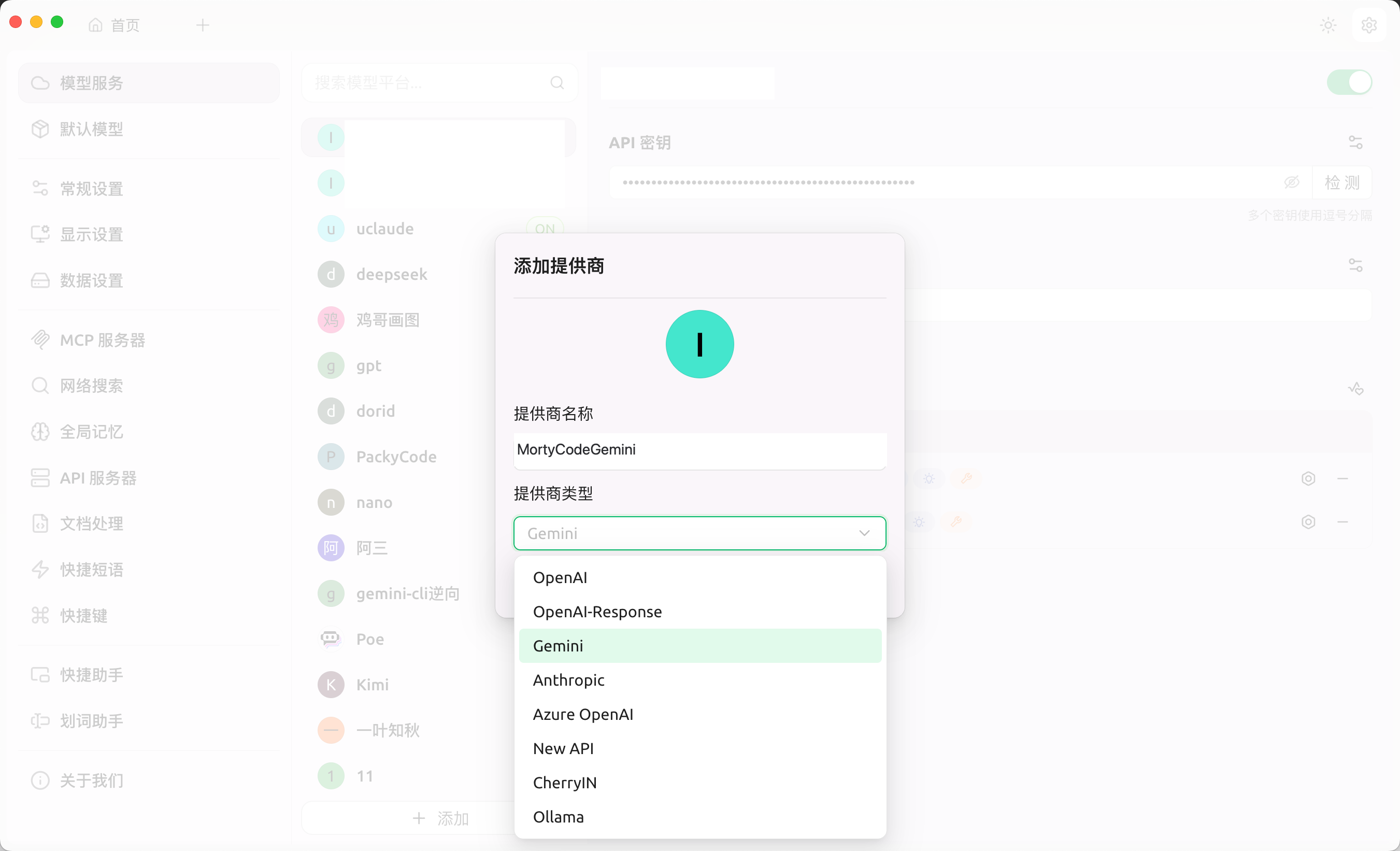
Pick the Gemini model you want:
- Gemini 3 Flash Preview:
gemini-3-flash-preview— newest, fast and capable (recommended) - Gemini 3 Pro Preview:
gemini-3-pro-preview— high performance, great for complex tasks - Gemini 2.0 Flash: Fast responses, good for simple chats
⚠️ Note
- Gemini and Claude require different API Keys (different token groups)
- Make sure you've created the matching token group on MortyCode
Step 2: Configure the Gemini API
Fill in the Gemini configuration screen:
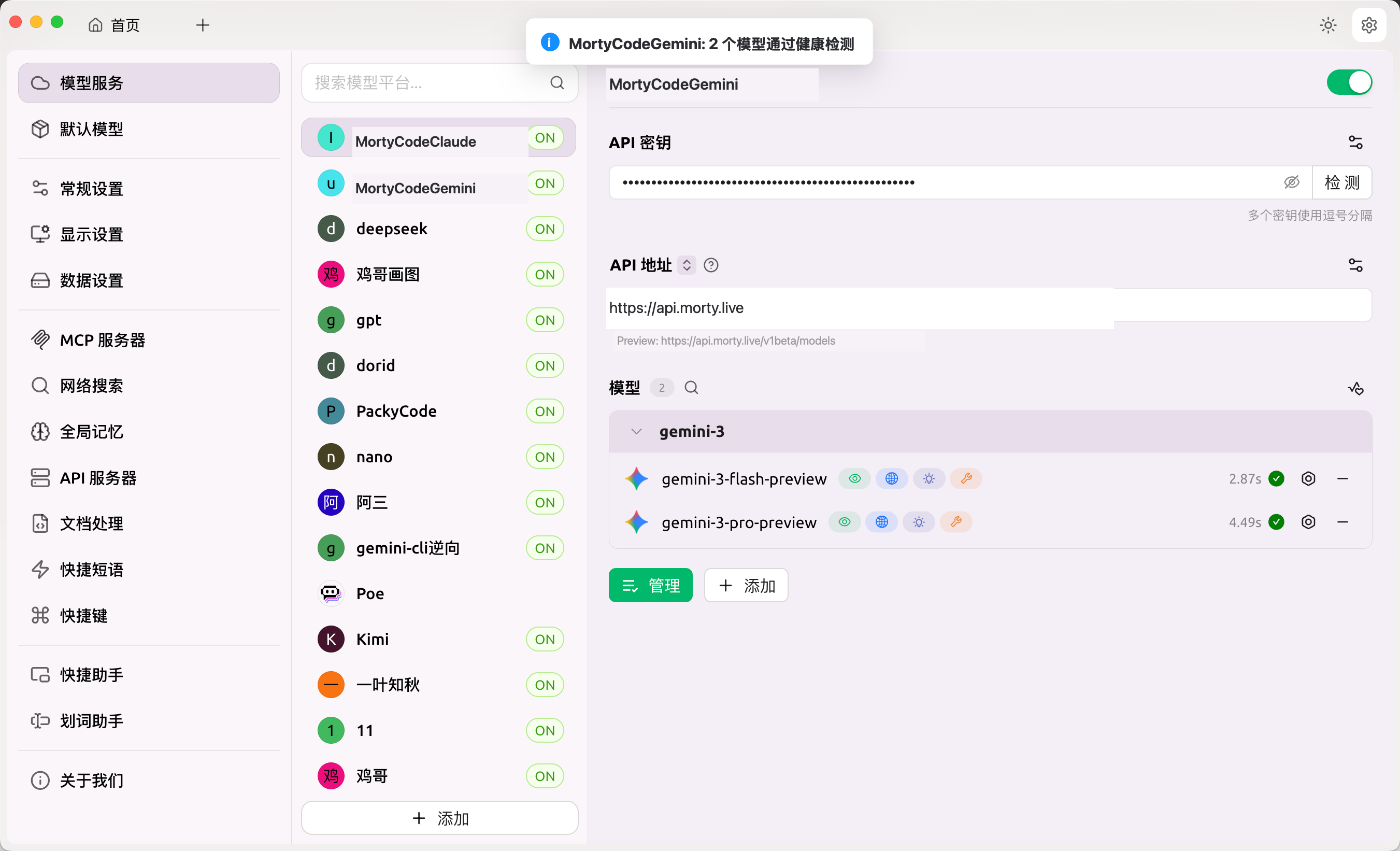
Parameters:
- Provider type:
Gemini - API endpoint:
https://api.morty.live/v1beta/models - API Key: Paste the Gemini API Key from the MortyCode console
- Model name: The model you picked in the previous step (e.g.
gemini-3-flash-preview)
💬 Get Started
Start a New Chat
- Click "New Chat"
- Select one of your configured models from the picker
- Start chatting with the AI
Switch Models
You can change models mid-conversation:
- Click the model picker at the top
- Choose another configured model
- Continue chatting (context may persist or reset depending on app settings)
Tune Parameters
CherryStudio typically supports tuning:
- Temperature: Controls randomness (0–1)
- Max Tokens: Controls response length
- Top P: Controls sampling range
💡 Parameter Suggestions
- Programming tasks: Temperature 0.2–0.5 (more accurate)
- Creative writing: Temperature 0.7–0.9 (more creative)
- Daily chat: Temperature 0.5–0.7 (balanced)
🎯 Best Practices
1. Match Model to Task
- Code editing: Claude Sonnet 4.5 (
claude-sonnet-4-5-20250929) - Quick chat: Gemini 3 Flash Preview (
gemini-3-flash-preview) - Complex reasoning: Claude Opus 4.5 (
claude-opus-4-5-20251101) - Multimodal: Gemini 3 Pro Preview (supports images)
2. Manage API Usage
- Check your balance in the MortyCode console regularly
- Use separate API Keys for separate purposes
- Don't expose API Keys in public
3. Optimize the Chat Experience
- Write clear prompts
- Keep context length reasonable
- Use the conversation history tools
🔍 Compared to Other Clients
| Feature | CherryStudio | Alma | Hapi |
|---|---|---|---|
| UI type | Desktop app | Desktop app | Web/PWA |
| Multi-model support | ✅ | ✅ | ✅ |
| Code editing | Partial | ✅ | ✅ |
| Terminal integration | ❌ | ✅ | ✅ |
| Remote access | ❌ | ❌ | ✅ |
| Learning curve | Low | Medium | Medium |
Recommendations:
- Chat-only needs: CherryStudio (simple, beginner-friendly)
- Development: Alma or Hapi (more capable)
- Remote control: Hapi (exclusive feature)
FAQ
"Invalid API Key" error?
Likely causes:
- API Key typo
- Wrong token group (a reverse-only Key won't work for Gemini)
- Insufficient balance
How to fix:
- Re-copy the full API Key
- Confirm the right token group exists in the MortyCode console (reverse-only for Claude, gemini for Gemini)
- Top up your balance if it's low
Model list is empty?
Likely causes:
- Wrong Base URL
- Network issues
- API Key lacks permissions
How to fix:
- Verify the Claude endpoint is
https://api.morty.live/v1/messages - Verify the Gemini endpoint is
https://api.morty.live/v1beta/models - Check your network
- Regenerate the API Key and confirm the right group
Slow responses?
Likely causes:
- Network latency
- Large model selected
- Context too long
How to fix:
- Check your network quality
- Try a faster model (e.g. Gemini Flash)
- Trim or clear the conversation history
How do I use multiple models at the same time?
In CherryStudio:
- Configure each provider separately
- Pick the desired model when starting a new chat
- Open multiple chat windows, each with a different model
More Questions
See:
✅ Done
🎉 Setup complete! Enjoy chatting with AI through CherryStudio.
Key reminders:
- ✅ Different models need different API Keys (different groups)
- ✅ Claude API endpoint:
https://api.morty.live/v1/messages - ✅ Gemini API endpoint:
https://api.morty.live/v1beta/models - ✅ Match the model to the task
- ✅ Check your balance in the MortyCode console regularly
- ✅ Keep your API Keys safe
Related tutorials: