Alma Client Configuration Guide
A powerful AI coding client
📋 Overview
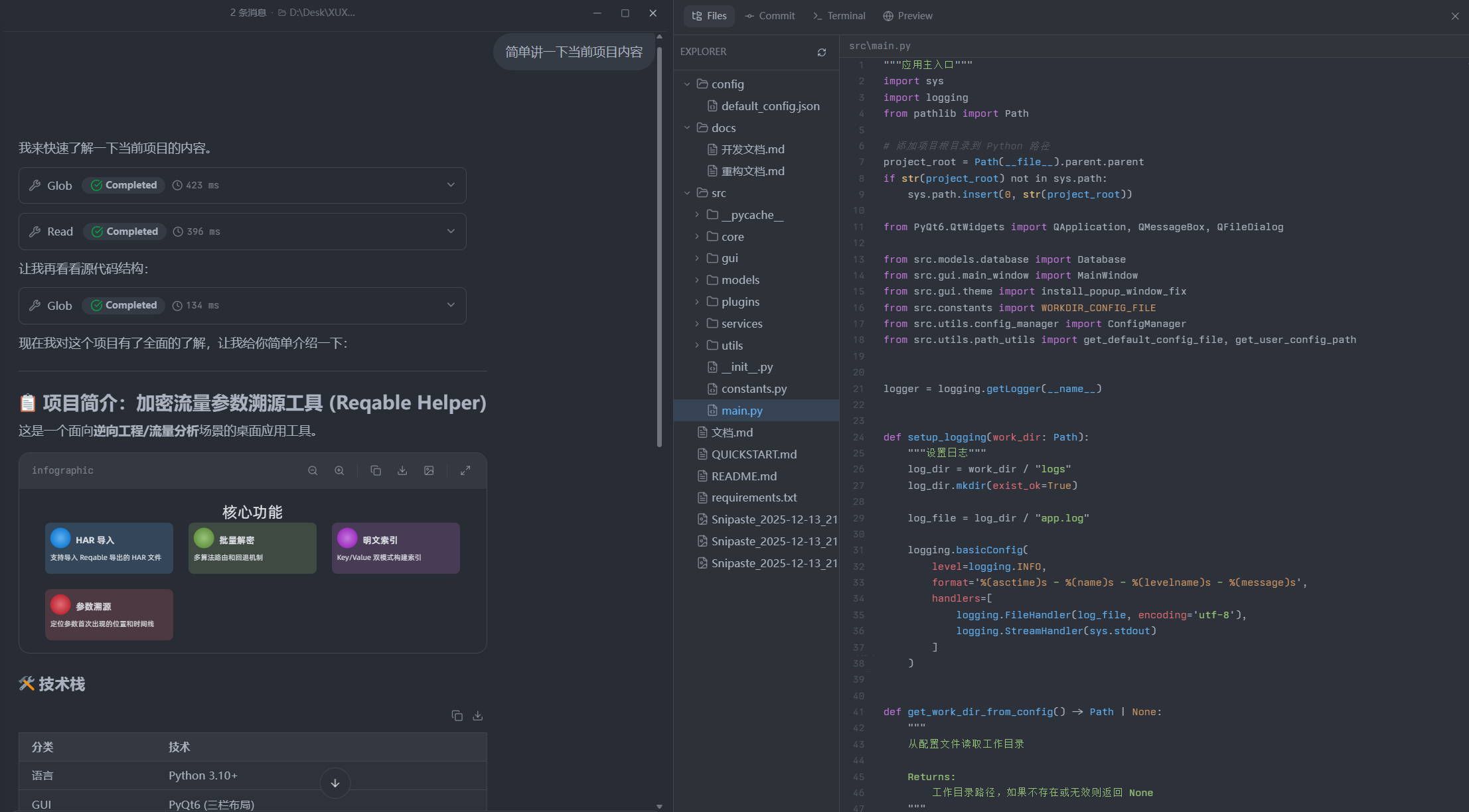
Alma is a powerful, beautifully designed AI client that bundles code editing, terminal operations, Git management, an embedded browser, and more — delivering a complete AI-assisted development experience.
🔗 Related Links
| Resource | URL |
|---|---|
| Alma website | https://alma.now/ |
✨ Features
Alma offers:
- ✅ Code editing: Smart code generation and completion
- ✅ Terminal: Integrated terminal for running commands directly
- ✅ Git management: Visual Git operations
- ✅ Browser integration: Built-in browser support
- ✅ Multi-model support: Works with Claude, Gemini, and more
- ✅ Custom providers: Add your own API providers
🛠️ Install & Configure
Step 1: Install Alma
Visit the Alma website and download the build for your OS.
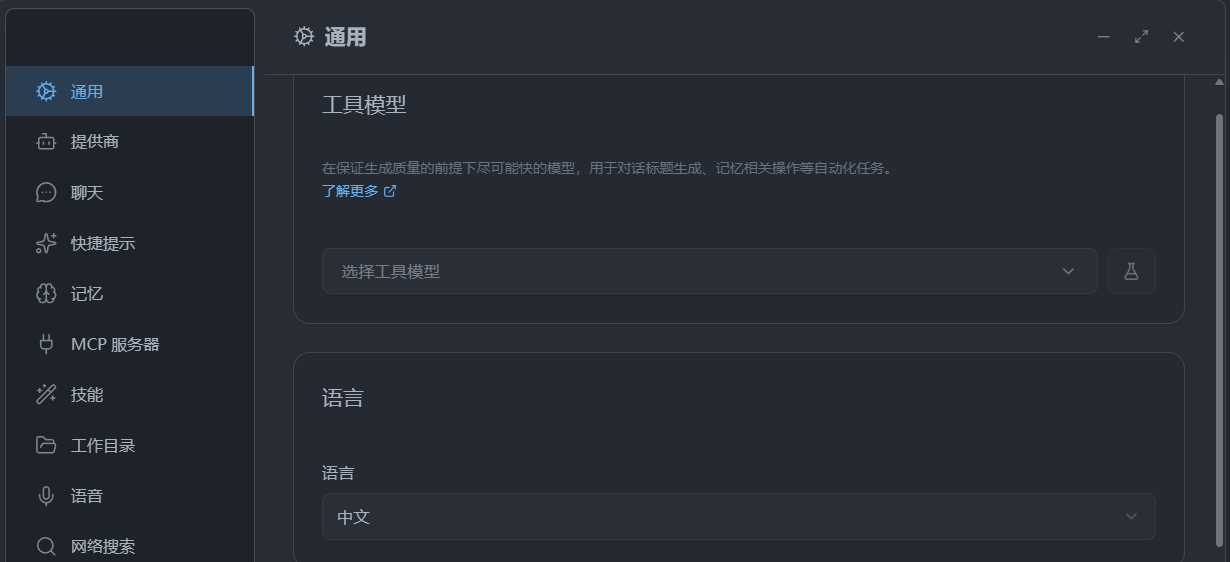
Step 2: Switch to Chinese UI
For the best experience we recommend switching the UI to Chinese:
- Open Alma
- Go to Settings → General → Language
- Select "Chinese"
Step 3: Add the MortyCode Custom Provider
1. Open the provider settings
Click Select Provider → Add Custom Provider
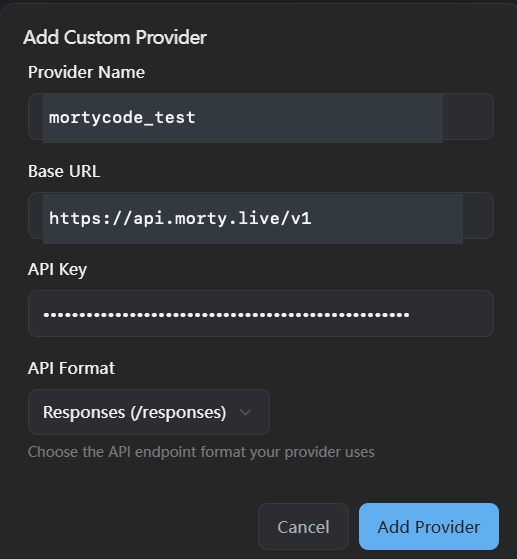
2. Configure the MortyCode provider
Fill in:
- Provider Name: MortyCode (or your own name)
- Base URL:
https://api.morty.live/v1 - API Key: Paste the API Key you created from the MortyCode console
💡 Tips
- Claude models: use an API Key from the reverse-only group
- Gemini models: use an API Key from the gemini group
- MortyCode's Codex does not support third-party client access
3. Fetch the available models
After adding the provider, click the Fetch button on the MortyCode provider page — Alma will automatically pull every available model.
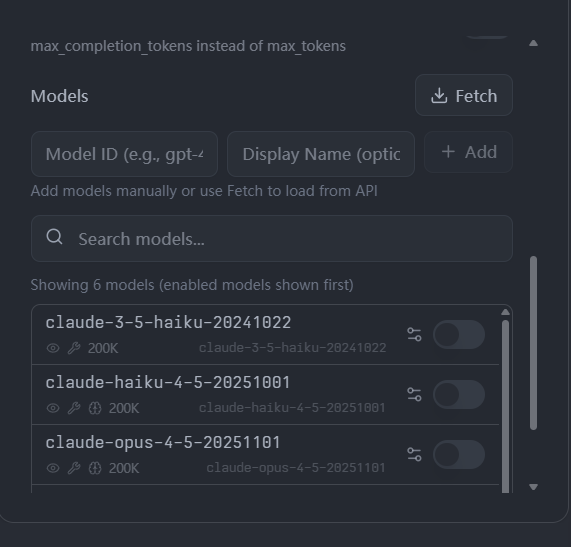
Pick the model you need and you're ready to go.
Step 4: Configure Multiple Groups (Optional)
MortyCode supports accessing different model collections through different API Keys (different groups).
On the provider page you can:
- Add API Keys for different groups
- Fetch the model list for each group
- Switch between them as needed
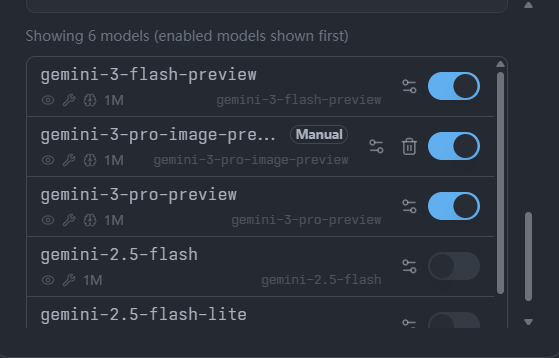

💡 Tip
To use Gemini 3's image generation feature, choose an API Key from the default channel.
💬 Creating a New Chat
Important Setting
When you start a new chat, the context scope setting is critical:
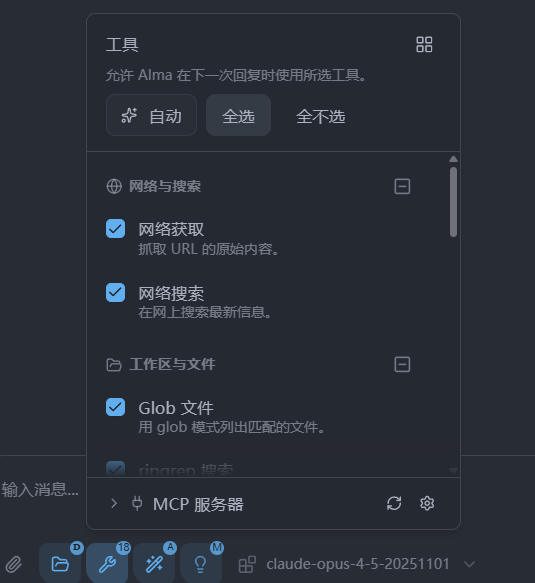
⚠️ Strong Recommendation
Choose "Select All" instead of "Auto"!
In testing, "Auto" causes severe hallucinations, including:
- Referencing files that don't exist
- Generating incorrect logic
- Misunderstanding project structure
"Select All" gives the model full context and produces far more accurate responses.
Usage Tips
1. Code Editing
- Describe what you need and Alma generates the code
- Supports multi-file edits and project-wide changes
- Preview and tweak the generated code in real time
2. Terminal
- Run commands in the integrated terminal
- View command output
- Debug issues interactively with the AI
3. Git Management
- Visual Git status
- AI-assisted commit messages
- Branch management and merge support
4. File Browser
- Navigate the project tree
- Quickly locate and edit files
- File search and filtering
🎯 Best Practices
1. Pick the Right Model
- Claude Sonnet: Great for everyday coding, fast
- Claude Opus: Best for complex architecture and tough problems
- Gemini: Best for multimodal work (e.g. image understanding)
2. Manage Context Wisely
- For small projects, "Select All" is fine
- For large projects, pick the relevant modules and files
- Trim irrelevant context periodically to avoid wasting tokens
3. Lean on Alma's Integrations
- Use the terminal to verify AI-generated code
- Use the Git integration to manage versions
- Use the built-in browser for docs and references
FAQ
How do I switch between API providers?
Use the model picker at the top of the chat — you can swap providers and models at any time.
Why are some models unavailable?
- Check whether the API Key has permission for that model
- Confirm your account has enough balance
- Review the token group setup in the MortyCode console (Claude needs the reverse-only group; Gemini needs the gemini group)
How is Alma different from Claude Code?
| Feature | Alma | Claude Code |
|---|---|---|
| UI | Graphical | Command line |
| Use case | Full IDE-like environment | Quick terminal tasks |
| Integrations | Terminal, Git, browser, etc. | Pure CLI tool |
| Learning curve | Lower | Higher |
Choose based on your workflow.
More Questions
See the FAQ or contact support.
✅ Done
🎉 Setup complete! Time to enjoy AI-assisted coding with Alma.
Key reminders:
- ✅ Use "Select All" for context scope
- ✅ Pick the model that fits the task
- ✅ Lean on Alma's built-in integrations
- ✅ Keep an eye on your API balance